How to Optimize Your Browser for 120+ FPS Gaming: WebGL, Hardware Acceleration, and Low Latency
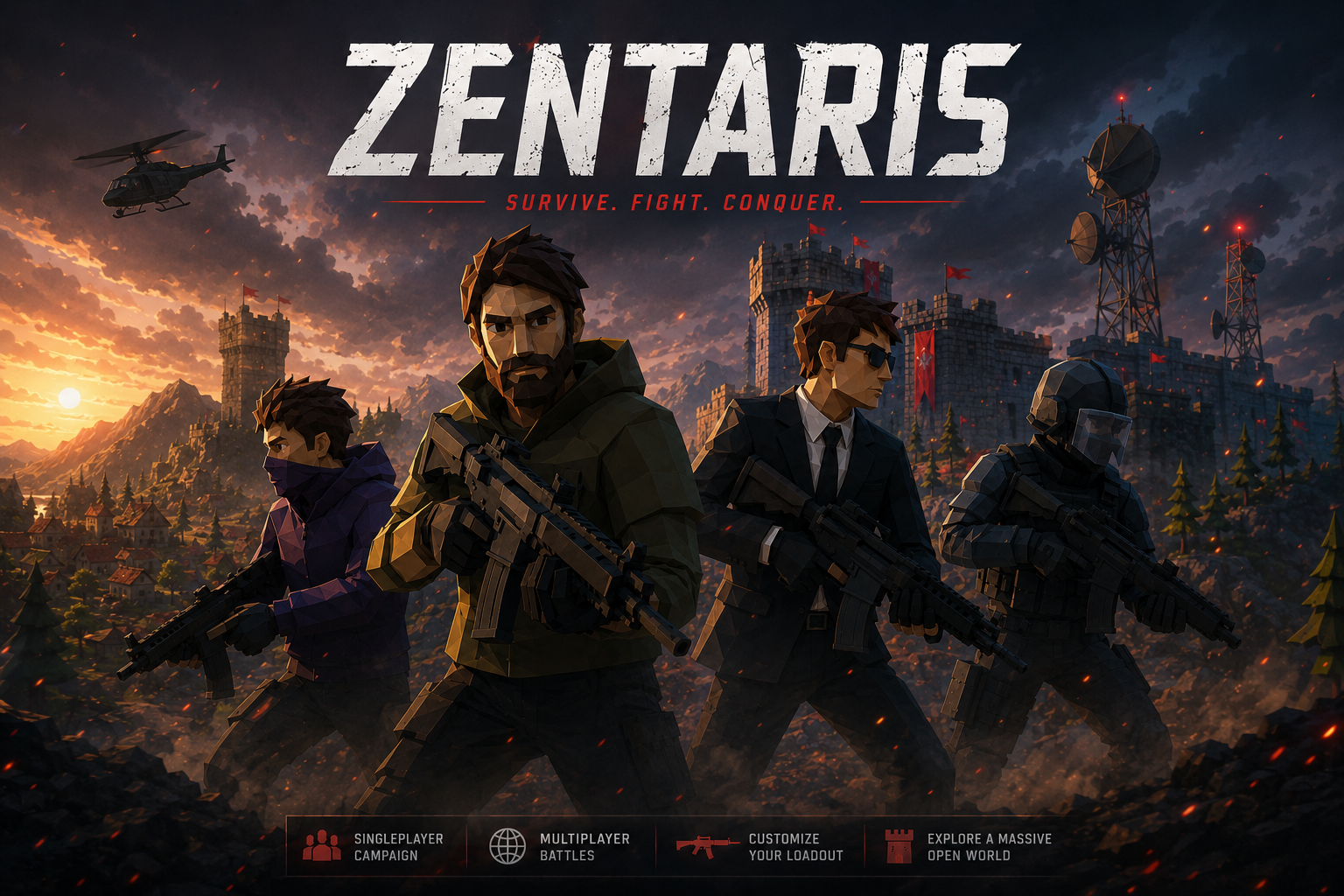
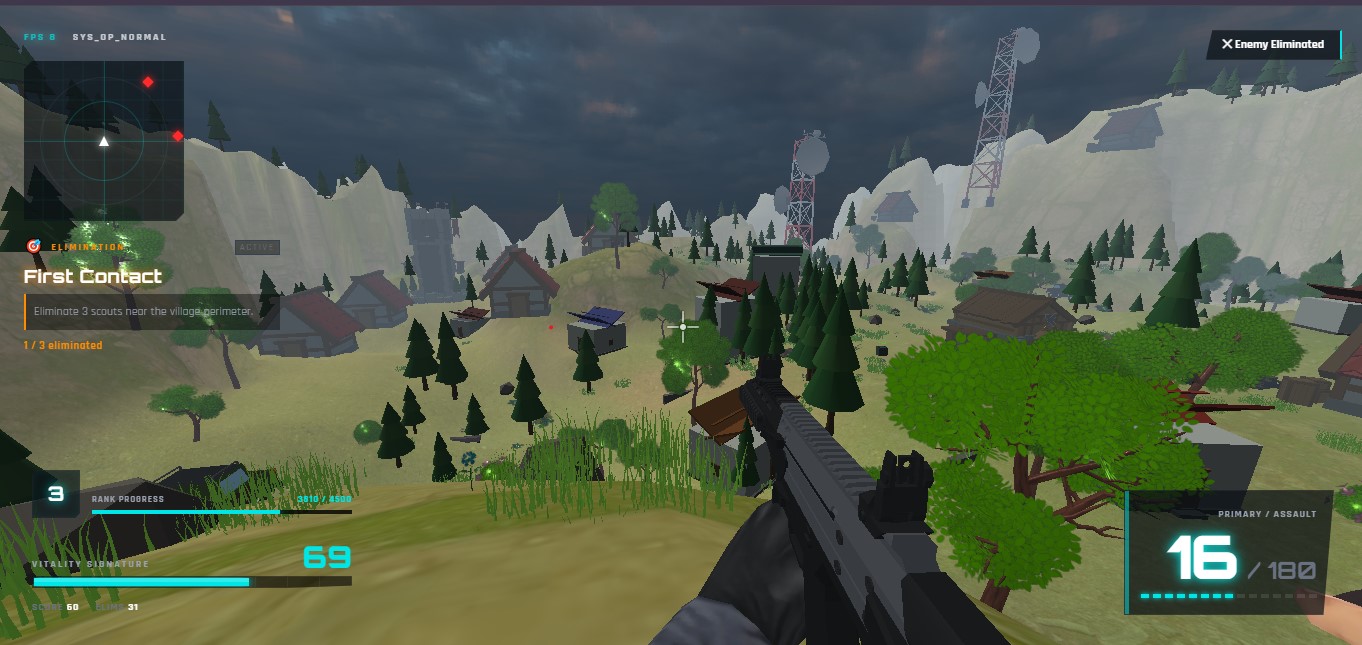
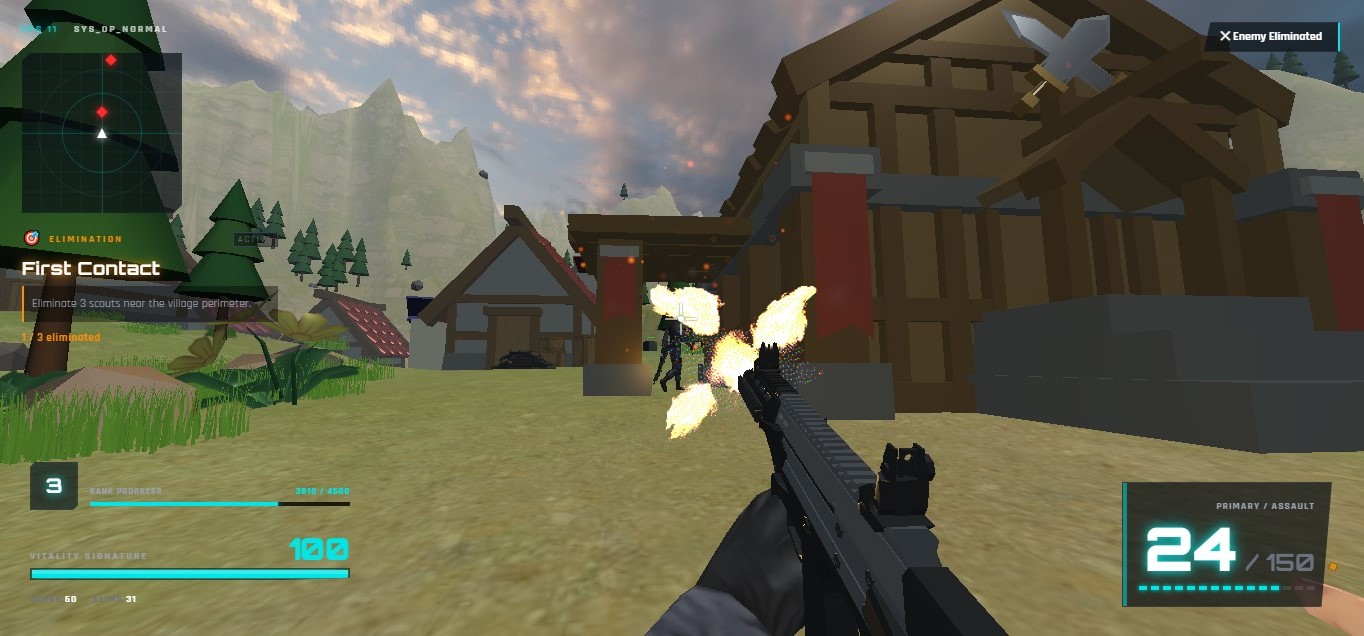
Playing a competitive 3D tactical shooter inside a web browser used to mean compromised visuals and sluggish input response. But with modern WebGL 2.0 and WebGPU capabilities, Zentaris runs at blistering speeds matching native desktop applications.
However, default browser installations are often configured for battery preservation rather than raw, competitive rendering throughput. If you want silky-smooth 120Hz or 144Hz frame rates and sub-10ms input latency, follow this definitive optimization checklist.
1. Verify and Force GPU Hardware Acceleration
If hardware acceleration is disabled, your browser delegates intensive 3D rendering to your CPU via software emulation, bottlenecking your frame rate below 30 FPS.
For Google Chrome, Brave, and Chromium Browsers:
1. Open your browser settings and navigate to chrome://settings/system.
2. Ensure "Use graphics acceleration when available" is toggled ON.
3. In your URL bar, type chrome://gpu and press Enter.
4. Verify that WebGL, WebGL2, and Rasterization display green text reading "Hardware accelerated".
For Microsoft Edge:
1. Navigate to edge://settings/system.
2. Toggle on "Use graphics acceleration when available".
3. Restart your browser.
2. Advanced Chromium Flags for Maximum Framerate
Chromium features advanced experimental flags designed specifically for low-latency graphics rendering. Enter these in your address bar:
chrome://flags| Flag Name | Recommended Setting | Tactical Advantage |
|---|---|---|
| Override software rendering list | Enabled | Forces GPU rendering even on older driver revisions |
| GPU rasterization | Enabled | Offloads vector assets and UI textures to GPU VRAM |
| Zero-copy rasterizer | Enabled | Writes raster buffers directly to GPU memory, bypassing CPU roundtrips |
| Angle Graphics Backend | D3D11 or Vulkan (Windows) / Metal (Mac) | Selects the lowest-overhead native graphics API for your operating system |
Pro Warning: After modifying browser flags, always click the "Relaunch" prompt at the bottom of the screen for changes to take effect.
3. Eliminating Input Latency and Mouse Lag
In tactical shooters, cursor responsiveness is everything. Browser pointer-lock can suffer from synthetic buffering if mouse settings are uncalibrated:
- Disable Windows Pointer Precision: Open Windows Control Panel > Mouse Settings > Pointer Options > Uncheck "Enhance pointer precision". This ensures true 1:1 hardware raw input without artificial acceleration curves.
- Close Background Video Decoders: Streaming 4K video or active Discord hardware screen shares in secondary tabs can consume your GPU's video decoding pipelines, causing micro-stutters during gunfights.
- Turn Off Heavy Browser Extensions: Ad-blockers with aggressive DOM-monitoring scripts can introduce 2-5ms execution stalls on the JavaScript main thread. Whitelist
zentaris.onlineto grant the game engine unimpeded thread priority.
4. In-Game Zentaris Graphics Calibration
Inside the Zentaris in-game settings menu, fine-tune these parameters for your hardware:
1. Resolution Scale: Set to 100% (Native). Dropping to 85% can boost FPS on integrated Intel Iris or AMD Vega graphics without significant loss of crosshair clarity.
2. Shadow Quality: Set to Medium. Dynamic directional shadows provide useful player location cues without incurring the high fill-rate cost of ultra soft shadows.
3. Anti-Aliasing (FXAA): Enabled. WebGL FXAA cleans up jagged staircase edges on long corridor sightlines with less than 0.3ms frame time overhead.
With these optimizations deployed, your browser will deliver pristine, responsive 120+ FPS combat, giving you the competitive edge in every engagement.